Breaking News
Loading...

Recent Post

Showing posts with label Proxy Server. Show all posts
Friday, May 2, 2014
What is a Proxy Server and How it Works?

What is a Proxy Server and How it Works?


In a computer network, a proxy server is any computer system offering a service that acts as an intermediary between the two communicating parties, the client and the server. In the presence of a proxy server, there is no direct communication between the client and the server. Instead, the client connects to the proxy server and sends requests for resources such as a document, web page or a file that resides on a remote server. The proxy server handles this request by fetching the required resources from the remote server and forwarding the same to the client.

How Proxy Server Works?

An illustration of how a proxy server works is shown below:
As shown in the above example, whenever the client connects to a web proxy server and makes a request for the resources (in this case, “Sample.html”) that reside on a remote server (in this case, xyz.com), the proxy server forwards this request to the target server on behalf of the client, so as to fetch the requested resource and deliver it back to the client. An example of client can be a user operated computer that is connected to the Internet.

Types of Proxy Servers and their Uses:

1. Forward Proxies

A forward proxy is the same one described above where the proxy server forwards the client’s request to the target server to establish a communication between the two. Here the client specifies the resources to be fetched and the target server to connect to, so that the forward proxy server acts accordingly. Except forreverse proxy (discussed in the latter part of this article), all other types of proxy servers described in this article falls under forward proxy.

2. Open Proxy

An open proxy is a type of forwarding proxy that is openly available to any Internet user. Most often, an open proxy is used by Internet users to conceal their IP address so that they remain anonymous during their web activity. The following are some of the web proxies that fall under the category of open proxy:

Anonymous Proxy

An anonymous proxy is a type of open proxy that conceals IP address of Internet users so that the target server cannot identify the origin of the requesting client. However, an anonymous proxy identifies itself as a proxy server but still manages to maintain the anonymity of the users.

Distorting Proxy

This type of proxy server identifies itself as a proxy, but reveals an incorrect IP address of the client to the target server.

High Anonymity Proxy (Elite Proxy)

An elite proxy provides maximum anonymity as it neither identifies itself as a proxy nor reveals the original IP address of the client. In most cases, users have to pay for this type of proxy as it is seldom available freely on the Internet.

3. Reverse Proxy

Unlike a forwarding proxy where the client knows that it is connecting through a proxy, a reverse proxyappears to the client as an ordinary server. However, when the client requests resources from this server, it forwards those requests to the target server (actual server where the resources reside) so as to fetch back the requested resource and forward the same to the client. Here, the client is given an impression that it is connecting to the actual server, but in reality there exists a reverse proxy residing between the client and the actual server.
Reverse proxies are often used to reduce load on the actual server by load balancing, to enhance security and to cache static content, so that they can be served faster to the client. Often big companies like Google which gets a large number of hits maintain a reverse proxy so as to enhance the performance of their servers. It is not a surprise that whenever you are connecting to google.com, you are only connecting to a reverse proxy that forwards your search queries to the actual servers to return the results back to you.

Saturday, January 4, 2014
How to Get Website Info Using Cmd?

How to Get Website Info Using Cmd?


Despite most operating systems nowadays have graphical user interface and most of the tools are implemented using one, the command line prompt (cmd) is still a powerful tool. This is especially true when it comes to performing administrative tasks or advanced networking information queries. In this article, we'll show you how to find many network related information about a website using the command prompt. For examples, the article will be using the Google website.


Start the command-line prompt. 
  1. This is usually done by one of the following methods:
    • Going to Start >> All Programs >> Accessories >> Command Prompt on Windows Vista/7. According to your settings, in older systems (XP, 2000, etc), you might find "Accessories" directly on "Start"
    • Go to Start >> Run and then type cmd in the run dialog and press Enter.

Method 1 of 3: IP Address and Connectivity
1>Type the following command to the command-line prompt, replacing google.com with the         website you want to get the information for:
  • ping google.com

2>Find the IP address of the website (more precisely, the server) on the first line, where it says "Pinging Website_Address_You_Entered [X.X.X.X] with 32 bytes of data:"


3>Notice the connectivity between you machine and the server from the line where it says: "Packets: Sent = X, Received = X, Lost = X (X% loss)," where all the Xs will be replaced by numbers. This gives you an idea of how much percent of the packets sent to the server will be lost.


Method 2 of 3: Routing Information

1>Type the following command to the command-line prompt, replacing google.com with the website or server you want routing information for:
  • tracert google.com

2>Notice the listing of hops along the route path of packets from your machine to the server.This gives you an idea of how many routers/hops the packet has to travel before reaching the server, starting from your machine.


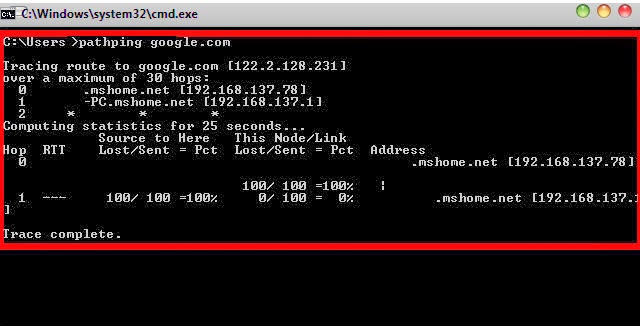
3>Use the pathping utility to find information about network latency and network loss at intermediate hops between a source and destination. Type the following to the command-line prompt: pathping google.com.
  • Pathping sends multiple Echo Request messages to each router between a source and destination over a period of time and then computes results based on the packets returned from each router.


Method 3 of 3: DNS information
1>Type the following on the command-line prompt, replacing google.com with the website or server you want DNS information for:
  • nslookup google.com

 2>Find the DNS server (first lines) and the IP addresses of the server you queried about.


TIPS:
  • If you're using these command in a corporate network or a school network, some of these commands might not give you results. Most institutions have firewalls with settings to deny services provided by these tools.
  • Some of the commands explained above have other options that might be useful for finding out information about your internal network.
Sunday, December 8, 2013
How To Use Google As A Proxy ?

How To Use Google As A Proxy ?

We often use schools and colleges internet connections , but they usually block access to undesired web sites(the "blacklist"). In order to access those sites you can do is use google translate as  proxy to bypass this restrictions. So lets get into it.

Method 1:

1.Visit whatismyipaddress and note down you real Ip Address
2. Now Go to Google Translate
3. From Under Detect Language, Chose your language in my case English

4. Now type http://whatismyipaddress.com/  in text area and click on Translate

5. Now check your Ip Address, Its different from the real one.

Method 2:

2. Change www.dzirezone.com to website you like to visit.
3. Done!


If you use this trick, you are not sure to protect your privacy, this kind of connection lets you see blacklisted or banned pages but does not hide your ip address.
Saturday, March 23, 2013
UltraSurf - Bypass All Internet Blocking Systems||School college block site unblock!!!

UltraSurf - Bypass All Internet Blocking Systems||School college block site unblock!!!

Ultrasurf - Privacy, Security, Freedom

UltraSurf is a proxy application. It will Bypass All Internet Blocking Systems. By using this software you can access all the sites blocked by national / corporate firewalls. It is a free application. It brake all the access list. This application is nothing but just searching the proxy list which is fast and available. It will automatically change our IE’s proxy server to local proxy. That means this application will work as a web proxy server. Most of the schools and co-operates are blocking dating sites like orkut , myspace. And some sites like YouTube ( for bandwidth ). Most of them depending web proxys to bypass them. But they won’t get the full feeling of a normal browsing , because the sites are with banners.


It is a small EXE. There is no need to install the application. Just run in ..


Features

1, 100% freedom to have 100% information in most secure way.

2, It means no matter where you are you can access 100% of internet I mean no firewalls no restriction nothing….

3. Almost all schools, universities and corporate offices raise firewalls to filter out not work related sites, now those firewalls will be of no use or they have to change their plans.

4. Everybody can access various social networks like Orkut, Youtube, Myspace, Hi5, Facebook, Linkedin etc. which are blocked almost in 99% schools and offices.

5. 100% real time and it’s encryption is better then any online banking system.

If you are using browsers other than IE, You have to manually change the proxy settings .
Proxy settings as follows..

HTTP Proxy : 127.0.0.1 Port : 9666


Ultrasurf Free Download, Get the Latest Version
Copyright © 2012 DzireZOne All Right Reserved
Designed by Pirate Rex