Breaking News
Loading...

Recent Post

Showing posts with label Windows RT. Show all posts
Sunday, April 13, 2014
Automatically Downloads Subtitles in VLC Player

Automatically Downloads Subtitles in VLC Player


Automatically Downloads Subtitles in VLC Player :-
VLC media player is a highly portable multimedia player for various audio and video formats as well as DVDs, VCDs, and various streaming protocols without external codec or program.It can also be used as a server to stream in unicast or multicast in IPv4 or IPv6 on a high-bandwidth network.
Today i am going to show you How to Automatically downloads subtitles in VLC Player ?
vlsub is a VLC extension to download subtitles from opensubtitles.org .
->Extract it
->run windows_installer.bat file
->now open your Your movie with VLC player. Navigate to View > VLsub

now Click on the Search by name or Search by hash option to search the subtitle track. then select your subtitle track and click on the Download selection to download it.


it will give you notification about Success subtitle loaded.


you can mange the subtitle track from Video > Subtitle track.


Enjoy your favorite movie with subtitle track.
Hope you like my post.Automatically Downloads Subtitles in VLC Player. Please Share with others.
 How to control the noise and speed of your fans

How to control the noise and speed of your fans


How to control the noise and speed of your fans :-
If your Laptop and Desktop PC are creating a Noise, then it,s time to control the noise and speed of your fans with SpeedFan Application.
SpeedFan is a program that monitors voltages, fan speeds and temperatures in computers with hardware monitor chips. SpeedFan can even access S.M.A.R.T. info and show hard disk temperatures.
SpeedFan supports SCSI disks too. SpeedFan can even change the FSB on some hardware (but this should be considered a bonus feature).
SpeedFan can access digital temperature sensors and can change fan speeds accordingly, thus reducing noise.
Download and Install SpeedFun on your PC.
SpeedFan can automatically control the speed that fans run at ( provided your PC allows this ), to reduce noise. The interface displays CPU usage, fan speeds and temperature’s.


Check the “ Automatic fan speed “ to have the software manage how quickly the blades spin. They will rotate more slowly when it’s cooler inside the case ( when your computer is less active ) and faster when the temperature rises.


For greater control, click Configure. Select the Fan Control Tab and click on the advanced fan control. Click Addand name and tick “Controlled speed”. Select a fan and click Add to link a temperature source ( or sources) to it. The graph shows the fan’s response to heat.


Enjoy your Noise free fan Speed with SpeedFan.
Saturday, April 12, 2014
How to Disable Ads in uTorrent and BitTorrent

How to Disable Ads in uTorrent and BitTorrent


How to Disable Ads in uTorrent and BitTorrent :-
Torrent is one of the most used way to share large files over internet on peer-top-peer network. Personally i am using torrent to download movies from internet. If you are using utorrent, it,s common for you to see ads in your uTorrent and BitTorrent application on your PC. However it,s good for company to get the money from adds. lots of useful applications running on PC are free and they are getting money from advertisers. uTorrent/BitTorrent is also using adds to generate revenue.


Today i am going to show you How to Disable Ads in uTorrent ?
Open your uTorrent client and navigate to Options > Preferences

now navigate to Advanced and in the Filter search for “offer “. Now make all the value to “false ” and also remove the offers.featured_content_url to empty.


Now just restart your uTorrent/BitTorrent application. Your uTorrent/BitTorrent ads will  vanish.
Tuesday, January 21, 2014
How to Customize Send to Menu in Windows

How to Customize Send to Menu in Windows

We all love windows and it’s easy interface and ability to alter and enhance it’s most features according to our likings.One of the most used option in the right­ click menu is the “send to” command. You also must have used this numerous times to send a file to any external drive or to the desktop, or simply zip it!

Now you can remove those unwanted shortcut in the send to menu which appear after installing some Applications or you just want to add your own application or folder for easy access easily by following the steps below.

In Windows Explorer, right­click a file/folder, and then point to Send To. On the menu that appears, click the destination where you want to send your file. The file is sent to or archived/activated by the destination that you select.

Destinations on the “Send To” menu may or may not include any of the following by default depending on your OS and OS version:

Learn how you can customize Send to Menu Windows 7/8/Vista:


Disk drives (local or network)

Fax printers

Printers

Windows­based programs

Compressed (zipped) folders

The desktop

Mail recipients

The My Documents folder

Add a Destination to the Send To Menu

Learn how you can customize Send to Menu Windows XP:


Compressed (zipped) Folder

Desktop (create shortcut)

Mail Recipient

My Documents

3 1/2 Floppy (A:)

CD Drive


First let’s see what a standard send to menu look like­ (Win 7/8)


How to­ do?

Firstly, we need to open the “Send To” Folder. To do this,

Open any Explorer Windows and paste the following in the address Bar.

%APPDATA%\Microsoft\Windows\SendTo

As in the snapshot below :

  • Now you should see some shortcuts in the folder, To delete any entry, simply delete the same.
  • To Add an item, simply copy the desired folder/program and paste its Shortcut in the folder.
  • And now, you would see the shortcut of the folder/program you added in the send to menu as the changes take effect immediately…

Keep in mind that some shortcuts cannot be created there like system files, and make sure to paste valid Shortcuts and not the Program/Folder itself! Hope you liked this easy tutorial to customize Send to Menu in Windows
Stay tuned for more!!
How To Play PS2 Games on PC or Laptop

How To Play PS2 Games on PC or Laptop

Computers are very powerful nowadays and support graphics well beyond that of a PS2, but if you're nostalgic for the games that came on one of the best-selling consoles in the world then you're in luck. This guide will show you how to play PlayStation 2 games on a PC or laptop.


Emulators have come a long way. An emulator is a program virtualizes the run-time environment for something; in this case the environment that we are mimicking is that of the PS2. Now to emulate something like a Gameboy or even a Playstation takes considerable effort, there are plenty of bugs and the creators typically have to do a lot of reverse-engineering; but to emulate the games of a PS2 is actually quite a feat.

Step-By-Step Guide to play ps2 games on pc or Laptop
Follow these steps and you'll be emulating games like your PC was a PS2.

1. The first thing that you'll need is the emulation software. It is called PCSX2.
2. After the download has finished, run the program and finish the setup. This will install the emulator, but in order to actually play games you’ll need a BIOS Pack. 3. Download the PlayStation 2 BIOS pack so that you are able to play games on your emulator. 

4. Locate your PCSX2 folder, which should be wherever the program installed to (likely Program Files). Once you find it, move the BIOS file that you downloaded into that folder.

5. The rest of the process is setup. Start the program and configure the default plugins. There are fields such as GS, PAD, SOUND, CDVD, USB, and others.

You can either leave these fields as they are or configure them to your specifications.

6. After you’ve configured the plugins and clicked Next, you’ll be taken to a screen where you can select the PlayStation 2 BIOS which you moved to your PCSX2 folder. Select Browse and click on the BIOS.

After the path to the BIOS file shows up, make sure you choose the type of console you want the emulator to run as. This can be a European console, Japanese console, or USA console…it all depends on what games you are trying to play and how you want to experience the emulation. After you’ve chosen the BIOS file and the type of console you want the emulator to run as, click Finish.

7. With the setup finished, the program should start running. With the program running, configure plugins and BIOS if need be. Remember the plugins are supposed to be configured for optimal system performance. So, experiment only if you’re getting drops in performance.

8. In the Config menu, located in the toolbar, you can configure your controller settings. This is done primarily for keyboard and mouse since if you’re using a PS2 controller the buttons will be automatically configured.

9. Lastly, choose the ISO you want to run by clicking the CDVD menu. Browse for the file (game) that you want to play and select it. With the file selected go to the System menu and then boot the CDVD that you just selected. You are now ready to play ps2 games on pc or Laptop
Do share with us your experience of Playing PS2 games in your PC or Laptop.
Saturday, January 18, 2014
Disable USB ports on Windows PC via Registry

Disable USB ports on Windows PC via Registry


With this trick, you can disable access to your USB(Universal Serial Bus) ports in your Windows based PC to prevent people from taking out data from your personal computer without permission or spreading viruses through the use of USB(pen and flash) drives. 

To use this trick to disable USB ports, follow the steps given below:

  1. Click on Start.
  2. Click on Run. If you cannot find RUN, type it in the search box or use "Windows key+R".
  3. Type "regedit" without quotes. This will launch the Registry Editor.
  4. Navigate to  HKEY_LOCAL_MACHINE\SYSTEM\CurrentControlSet\Services\usbstor.
  5. In the work area, double click on Start.
  6. In the Value Data box, enter 4.
  7. Click on OK.
  8. Close Registry Editor and refresh your desktop.
  9. To re-enable access to your USB ports, enter 3 in the Value Data box in Step 6.


Try it yourself to make your PC invulnerable from data theft and malware which spread through USB ports. This works on Windows XP, Windows Vista, Windows 7 and Windows 8.

Note: This trick also disables access to your USB connected peripheral devices. So, do not use it if you have USB connected keyboard and mouse.
Convert FAT32 to NTFS Without Formatting or Losing Data

Convert FAT32 to NTFS Without Formatting or Losing Data


You have a flash drive or probably an external hard drive that currently has FAT32 file system and you want to change it to NTFS, because FAT32 does not support handling large files (over 4GB) or it is just simply old for your taste but there is just one problem, you don't want to lose your saved data. This article is for you then as it explains exactly how you can achieve seamless transition from FAT to NTFS without involving any data loss.

While it is generally recommended to use the NTFS file system because of its stability, security and lesser defragmentation time, most of us end up using FAT32 because that is what most disks are preformatted with. Unless, we notice the “Not enough disk space error” despite disk space being available, we don't bother to change the file system. Moreover, most of us don't change it because of the risk of losing important data and lack of time (read laziness). As Microsoft was aware of this scenario, they added a capability in the command prompt to overcome this by executing a simple command. There are many software that support this too but the Convert command is one of the easiest ways to do so. Follow the steps below to know how:-


Important: While this method works perfectly, I would still advise you to backup your data in case anything goes wrong.


FAT 32 to NTFS Conversion Steps:

1) Go to Computer, and note the name of the drive whose file system you wish to convert.
2) Click on Start.
3) Type cmd in the search bar if you use Windows 7, Windows 8 or Windows Vista. If you use Windows XP, click on Run and then execute cmd. 
4) Execute "chkdsk h: /f" (without quotes) where H is the letter of the drive to undergo conversion. This checks the drive for errors and fixes them automatically.
5) Execute "Convert H: /FS:NTFS" (without quotes). H is again the letter of the drive to be converted.
6) The command prompt will start the conversion process and after a few minutes, CMD will say that conversion was successful.
7) You can check it in the properties of the drive through right click>Properties.


This works on Windows 7, Windows XP, Windows 8 and Windows Vista. I converted my flash drive's file system using these steps and it worked flawlessly. It is interesting to note that this method cannot be used to reconvert NTFS file system back to FAT32. To reconvert back to FAT32, you will need to format the entire drive which will definitely cause data loss.
Shutdown Your Computer or a Remote PC via Command Prompt

Shutdown Your Computer or a Remote PC via Command Prompt


Most of us shutdown our computers using the power button given in the Start menu. Some of us use the physical power button on our machines. Very few people actually use other means of shutting down a computer and even less is the number of people who use the command prompt to shutdown a computer.

A reason for this is that most of us don't know that the command prompt can be used to not only shutdown, restart or log off our computer instantly but also to shutdown a remote computer provided you have administrative access. It can also be used to hibernate a computer and give a comment containing the reason for shutdown. This post will show you how to do all this.

Required:
A computer running Windows (XP, Vista, 7 or 8) with the command prompt working perfectly, i.e. not disabled by a virus.

Initial Steps: 
1) Press Windows Key + R.
2) Enter "cmd" and press Enter.

This will start the command prompt. Follow the instructions below depending on what you want to do.

Shutdown Local Machine (Your Computer)
Type "shutdown -s" without the quotes in the command prompt and press Enter. Shutdown is the command being executed and the switch -s tells the computer to shutdown.

Restart your Local Computer 
Type "shutdown -r" in the command prompt and press Enter. In this case, the command switch -r is telling the computer to restart after shutdown.

Log Off the Current User
Type "shutdown -l" in the command prompt and press Enter. The -l command switch tells the computer to log off.

Shutdown a Remote Computer
Type "shutdown -s -m \\name of the computer" in the command prompt and press Enter. Replace \\name of the computer with the actual name of the remote computer you are trying to shutdown. As mentioned earlier, you must have administrative access to the computer you are trying to shutdown. To know if you have administrative access, press Windows key + R and then type the name of the computer and press Enter.

Note: If you don't remember the name of the remote computer, you can look for it by opening a list of all the computers you are connected to by executing "net view" in command prompt.

If you can connect to the computer, you will be asked to login with your username and password. Upon entering them, a window will display the list of all the directories available to you. This should help you know whether you can or cannot shutdown the remote computer.

Hibernate a Local Computer
Type in "Rundll32.exe Powrprof.dll,SetSuspendState" without the quotes and press Enter. Your computer should hibernate, if it does not, then you must enable hibernation to do this.

Shutdown your or a remote computer after a specific time
Type "shutdown -s -t 60" to shutdown your computer after 60 seconds. Upon executing this, a countdown timer displaying a warning message will be shown. This command uses the -t command switch followed by a variable (which is 60 in this case) which represents the number of seconds after which the computer will shutdown.

Display a Message containing the reason for shutdown
Type shutdown -s  -t 500 -c "I am tired. I don't want to work anymore." (with the quotes) in the Command Prompt and press Enter. The -c switch is used in the code to give the reason for shutting down and what is followed in quotes will be displayed in the dialog box as the reason. This can be used to display all sorts of funny messages. 
One example :-
Skynet has become self aware. John Connor did not stop me. You can not use your PC anymore.

Stop a System Shutdown
Type "shutdown -a" and press Enter. This will stop the system from shutting down if the countdown to shut down has not reached 0.
Monday, January 13, 2014
How to Force an MSI Package to Install Using Administrator Mode?

How to Force an MSI Package to Install Using Administrator Mode?


When you need to install a program as an administrator, you can right-click on the .exe file and select Run as administrator. However, that option isn’t available for MSI packages. We will show you how to add an Install as administrator option for MSI packages.


To add the Install as administrator option to the context menu for MSI packages, right-click on the Start button and select Run from the command menu, if you’re using Windows 8.1. If you’re using Windows 7 or another earlier version, select Run from the Start menu.
NOTE: You can also press the Windows key + R to access the Run dialog box.


Enter “regedit” (without the quotes) in the Open edit box and click OK. 


If the User Account Control dialog box displays, click Yes to continue.

NOTE: You may not see this dialog box, depending on your User Account Control settings.


Navigate to the following key:
HKEY_CLASSES_ROOT\Msi.Package\shell
Right-click on the shell key and select New | Key from the popup menu.


The new key is added as a sub-key under shell. Rename it to “runas” (without the quotes).

 Right-click on the Default value in the right pane and select Modify from the popup menu.

NOTE: You can also double-click on Default to edit its value.

 On the Edit String dialog box, enter “Install as &administrator” (without the quotes) in the Value data edit box and click OK.


Now, you need to add a sub-key to the runas key. Right-click on the runas key and select New | Key from the popup menu. Rename the sub-key “command” (without the quotes).

Select the command sub-key and double-click Default in the right pane to edit its value. On the Edit String dialog box, enter the following in the Value data edit box:
msiexec /i “%1”
Click OK. 

Close the Registry Editor by selecting Exit from the File menu. 

Now, when you right-click on an MSI installation package file, the Install as administrator option is available. 

When you select the Install as administrator option, the User Account Control dialog box may display, as shown at the beginning of this article, depending on your UAC settings.
Saturday, January 4, 2014
How to Get Website Info Using Cmd?

How to Get Website Info Using Cmd?


Despite most operating systems nowadays have graphical user interface and most of the tools are implemented using one, the command line prompt (cmd) is still a powerful tool. This is especially true when it comes to performing administrative tasks or advanced networking information queries. In this article, we'll show you how to find many network related information about a website using the command prompt. For examples, the article will be using the Google website.


Start the command-line prompt. 
  1. This is usually done by one of the following methods:
    • Going to Start >> All Programs >> Accessories >> Command Prompt on Windows Vista/7. According to your settings, in older systems (XP, 2000, etc), you might find "Accessories" directly on "Start"
    • Go to Start >> Run and then type cmd in the run dialog and press Enter.

Method 1 of 3: IP Address and Connectivity
1>Type the following command to the command-line prompt, replacing google.com with the         website you want to get the information for:
  • ping google.com

2>Find the IP address of the website (more precisely, the server) on the first line, where it says "Pinging Website_Address_You_Entered [X.X.X.X] with 32 bytes of data:"


3>Notice the connectivity between you machine and the server from the line where it says: "Packets: Sent = X, Received = X, Lost = X (X% loss)," where all the Xs will be replaced by numbers. This gives you an idea of how much percent of the packets sent to the server will be lost.


Method 2 of 3: Routing Information

1>Type the following command to the command-line prompt, replacing google.com with the website or server you want routing information for:
  • tracert google.com

2>Notice the listing of hops along the route path of packets from your machine to the server.This gives you an idea of how many routers/hops the packet has to travel before reaching the server, starting from your machine.


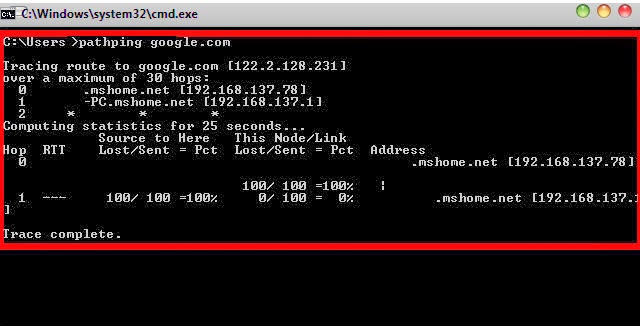
3>Use the pathping utility to find information about network latency and network loss at intermediate hops between a source and destination. Type the following to the command-line prompt: pathping google.com.
  • Pathping sends multiple Echo Request messages to each router between a source and destination over a period of time and then computes results based on the packets returned from each router.


Method 3 of 3: DNS information
1>Type the following on the command-line prompt, replacing google.com with the website or server you want DNS information for:
  • nslookup google.com

 2>Find the DNS server (first lines) and the IP addresses of the server you queried about.


TIPS:
  • If you're using these command in a corporate network or a school network, some of these commands might not give you results. Most institutions have firewalls with settings to deny services provided by these tools.
  • Some of the commands explained above have other options that might be useful for finding out information about your internal network.
Copyright © 2012 DzireZOne All Right Reserved
Designed by Pirate Rex